Setup - Do you use two monitors?
Loading last updated info...
Use two monitors when your work regularly involves cross-referencing information side-by-side. Keep your main task on one screen and supporting material on the other. This reduces window switching and makes it easier to compare, check, and continue working without losing context.
This is especially useful for developers, analysts, and reviewers. Good examples are:
- Code & Documentation
- Spreadsheet & Report
- Ticket & Logs
- Source Material & Data Entry.
The benefit is strongest when you need two active windows at once.
Two monitors are not a guaranteed big productivity boost for every task. They help most with comparison-heavy work. For more linear work, the gain can be much smaller.
To get the best out of a two monitors setup, put your primary monitor directly in front of you. Put the secondary monitor to the side. If you use both equally, center the pair together. A poor setup increases neck rotation and strain.
- Use two monitors if your job regularly needs two windows open at once.
- If you mostly work in one app at a time, one good monitor is enough, or possibly better.
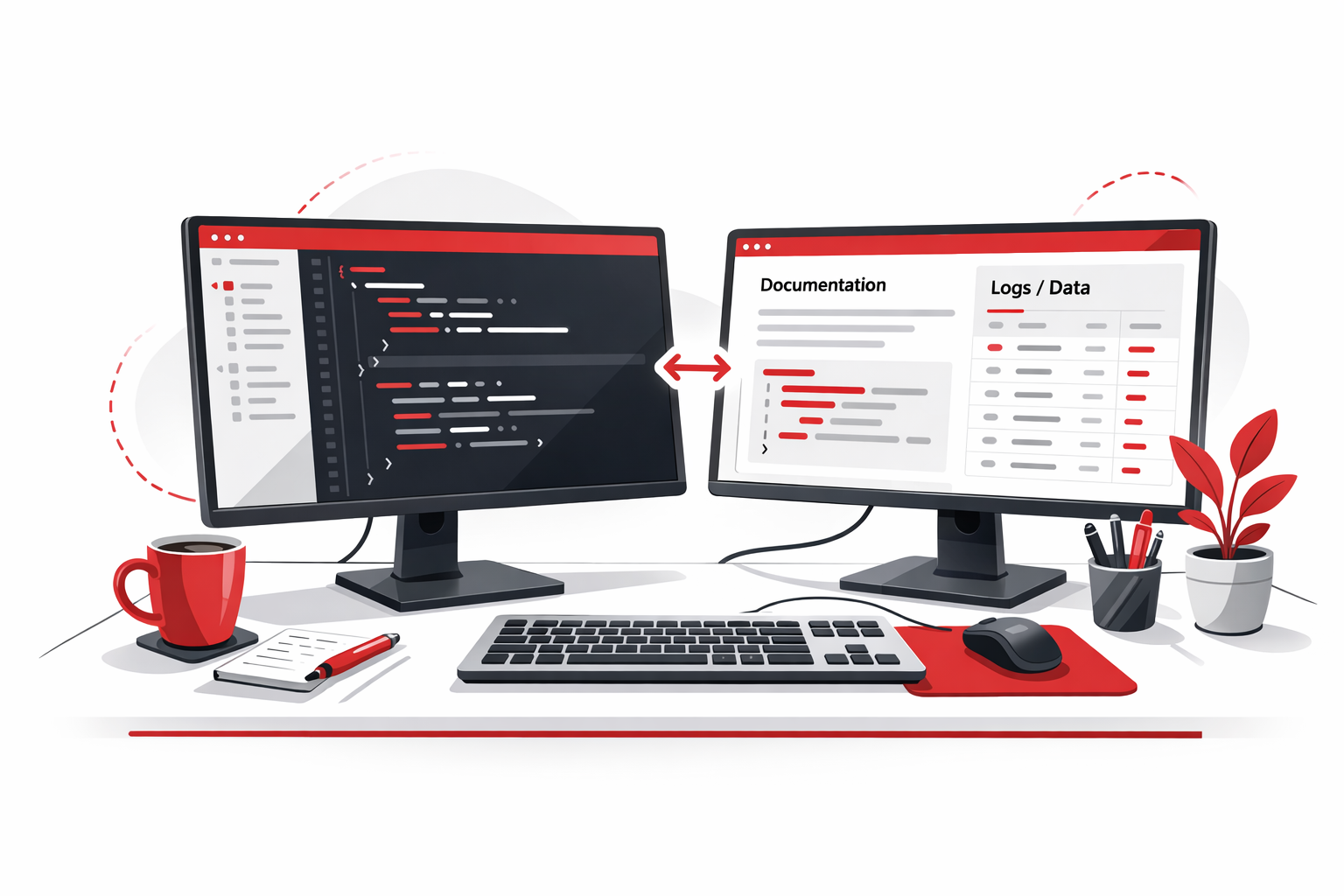
✅ Figure: Good example - Code IDE on one monitor and some documentation/logs on the other
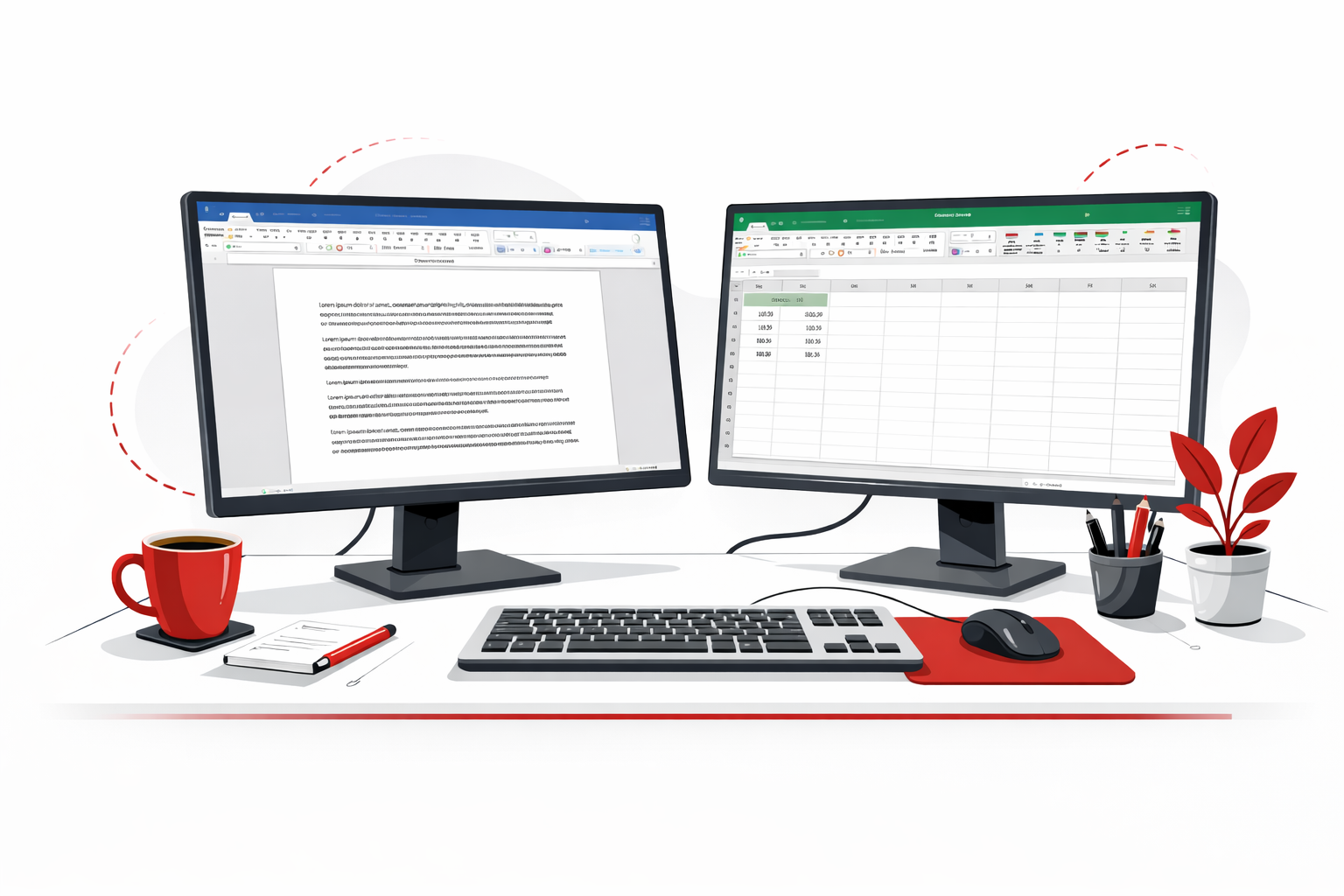
❌ Figure: Bad example - Using two different apps, for two different tasks
Two monitors are also valuable during video calls.
When you're in a Microsoft Teams meeting, a second monitor lets you keep the call visible at all times while continuing to work or present. This has a couple of specific advantages:
- Raise Hand visibility – With Teams on a dedicated screen, you can see at a glance when participants raise their hand. When the call is minimised or sharing a screen, this is easy to miss.
- Self-view distraction – Many people find it uncomfortable or distracting to see themselves during a call. With two monitors, you can move the Teams window to your secondary screen, keeping your self-view out of your direct line of sight while you present or take notes on your primary screen.
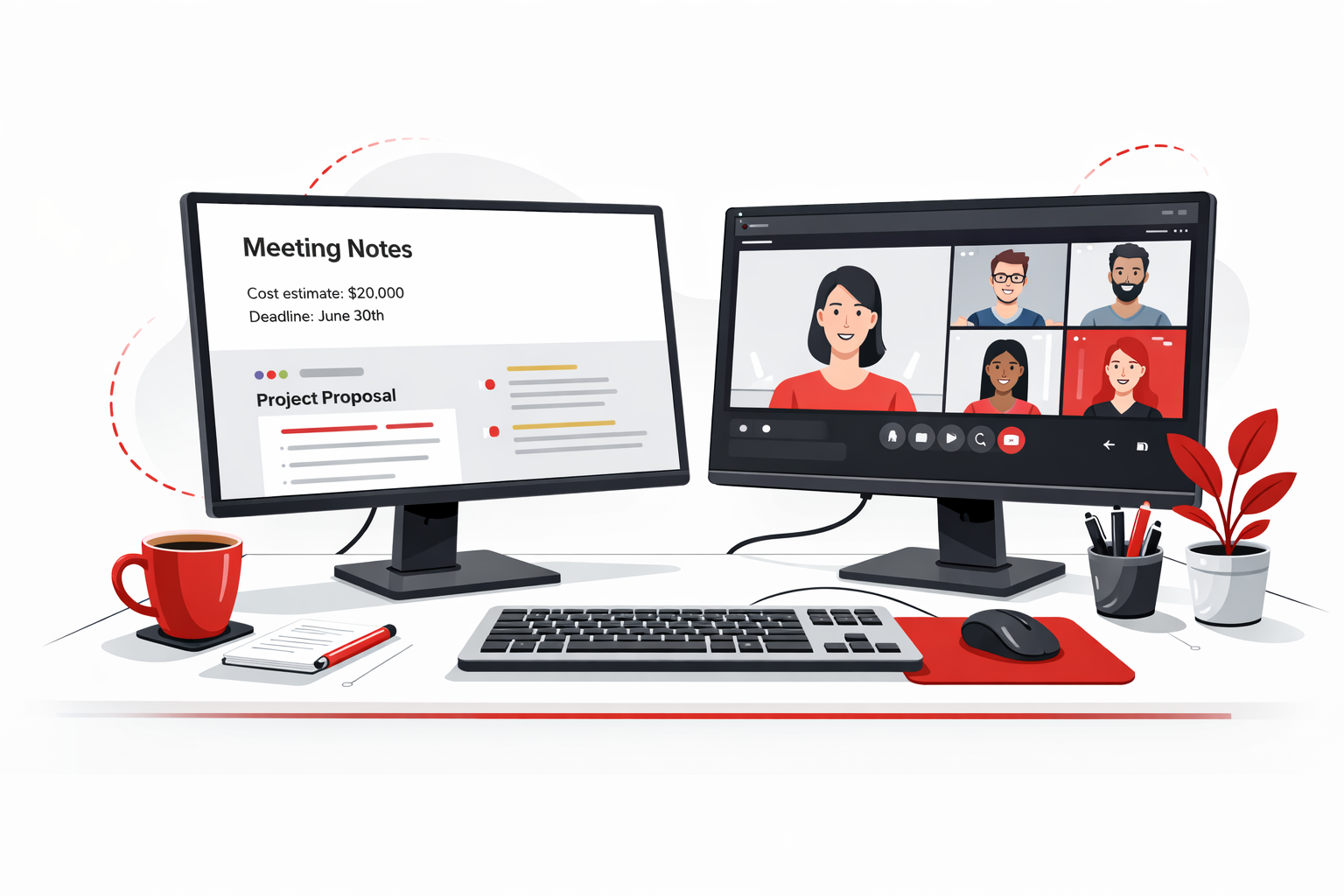
✅ Figure: Good example - Teams call on the secondary monitor, notes or shared content on the primary
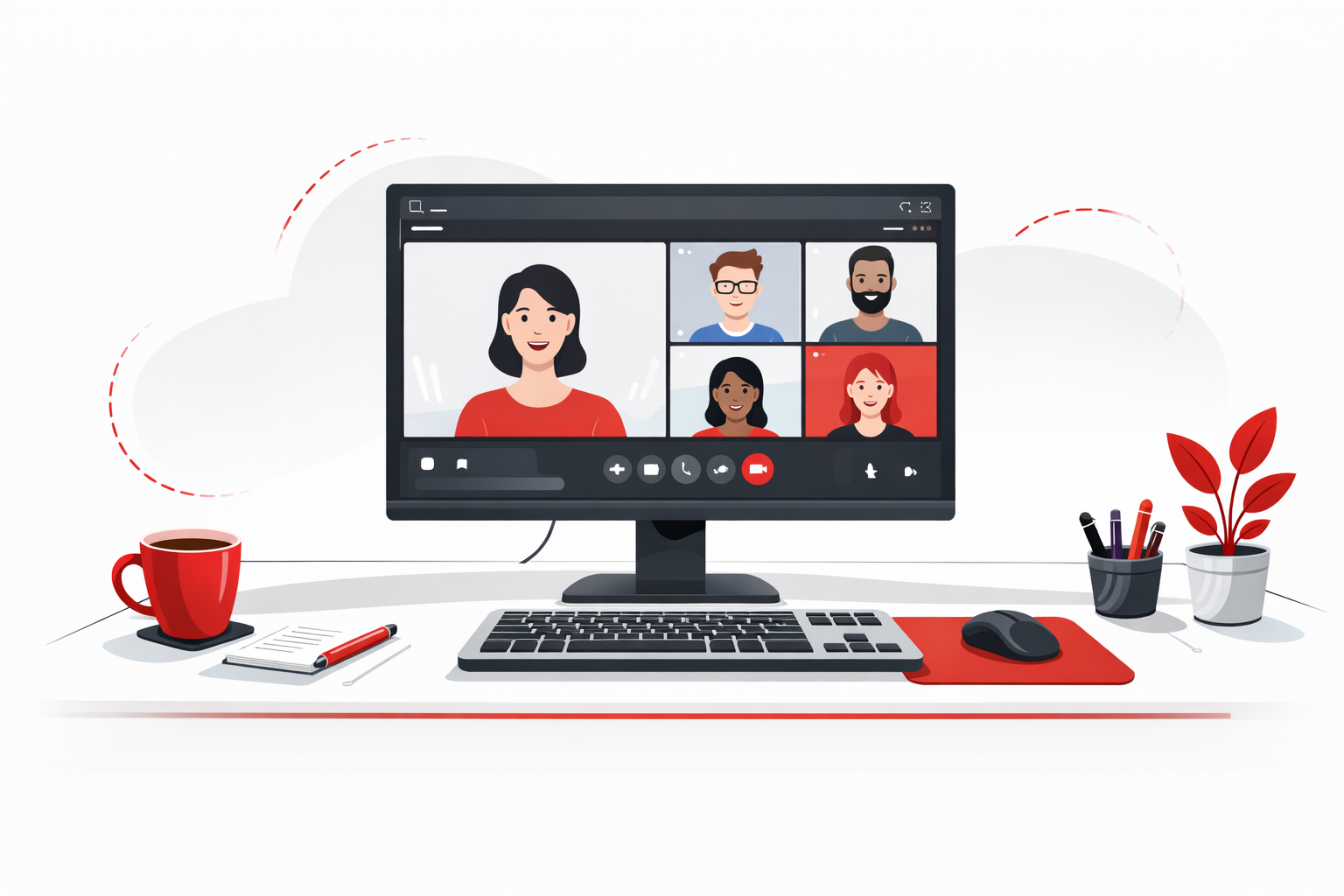
❌ Figure: Bad example - Teams call on your only monitor, forcing you to minimise or switch away to do anything else